
Save Sent Items in Shared Mailbox

Contents

    Microsoft 365

    To enable or disable it in the Office 365 admin portal:

    • Login into Office 365 Admin portal
    • Expand Groups and select Shared mailboxes
    • Double click on the shared mailbox you want to change
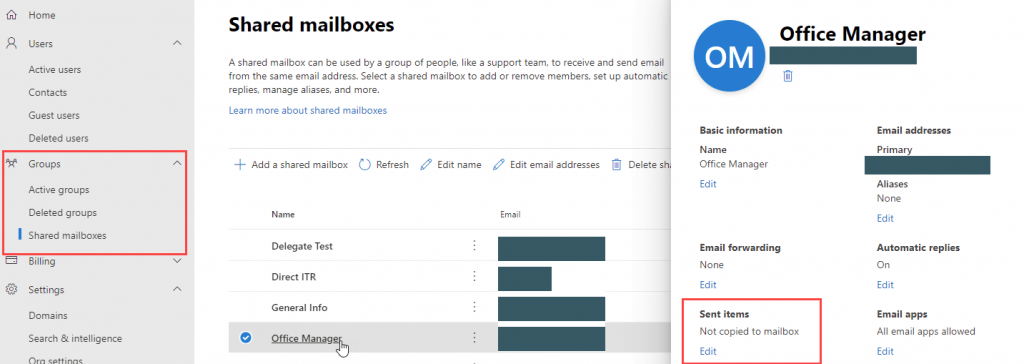
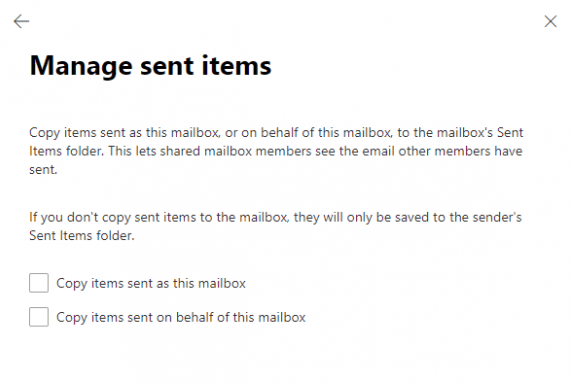
    • Click Edit under Sent items
    • Change the settings then Save and close the dialog.
    Updated on December 18, 2023
    Was this article helpful?

    7 responses to “Save Sent Items in Shared Mailbox”

    1. It is surprisingly common for sent items to end up in the wrong folder when juggling multiple delegates. Will this update take effect immediately or is there an Exchange caching delay?

    2. Shared mailboxes can become an unwieldy mess if sent emails vanish from the shared history. Does this require Send As permissions or also Send on Behalf?

    3. Having a copy in the sender’s personal Sent Items mailbox is super helpful when tracking individual accountability. Can PowerShell commands enforce this globally across tenant mailboxes?

    4. Configuring sent items to save automatically in shared mailboxes solves endless communication gaps for support teams. Does this setting persist across desktop Outlook and OWA seamlessly?

    5. Does this setting apply across both desktop and web versions of Outlook seamlessly, or is additional PowerShell configuration needed for full sync?

    6. Marcus Reed Avatar

      Managing shared mailbox sent items via PowerShell attributes like MessageCopyForSentAsEnabled is so much cleaner than touching local client registry hives. Does this attribute stay persistent after tenant mailbox migrations?

    7. Thomas Keller Avatar

      Having sent messages disappear from a shared mailbox copy creates duplicate replies across team members. Did Microsoft recently change the default registry keys for DelegateSentItemsStyle in newer 365 builds?

    Leave a Reply

    Your email address will not be published. Required fields are marked *